Posts

Showing posts with the label cgdi cg100x

How to Unbind CG100 and CG100X Accounts

Image
This guide will walk you through the process of unbinding your CG100 and CG100X accounts. 1. CG100 Account Unbinding Instructions ① Access Device Association Click on the icon shown below. This will display your account binding information. Select "Unbind Current Device" in the bottom left corner. ② Confirm Unbinding A dialog box will appear. Enter your account password and click "Confirm."  The device will be successfully unbound. ③ Restart the Software This is a crucial step. Make sure to exit the software and reopen it. At this point, you should see that no account information is present. 2. CG100X Account Unbinding Instructions ① Access Device Association Click on the icon shown below and select "Associated Devices." You will see your account binding information. Then click on "Unbind Current Device." ② Confirm Unbinding Enter your account password and click "Confirm." The device will be successfully unbound. ③ Restart the Softw...
CG100X Software Download, installation and activation

Image
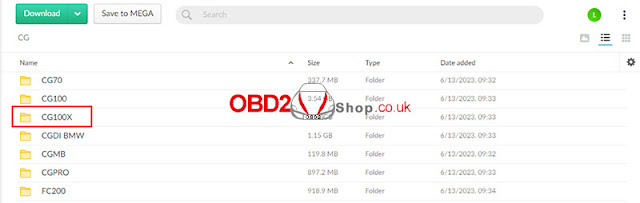
This post will guide you on how to download, install, and activate the software of the CGDI CG100X programmer . CG100X Software Download: https://mega.nz/folder/3CIXXDJC#jJ4CdJ9T-eEYhkBYi6Z65A Click the link above to open the CG100X folder and download it to your computer. CG100X Software installation and activation: Connect CG100X to the computer with a USB cable, and then open the software installed on the computer. Follow the prompts and select "Install" to complete the software installation. Open "CG100X, it "prompts" "The device is not active, can not be used." "Before activation, please log in to your account and bind your device." Click "OK" to continue. It comes to the current interface and selects "No account? Create one!" Fill in the following information and click "Next". Choose one of the following two methods for verification. Here we use email verification. Click "Get verification code"....

Mileage repair for Mercedes GLC 2017 via CGDI CG100X

Image
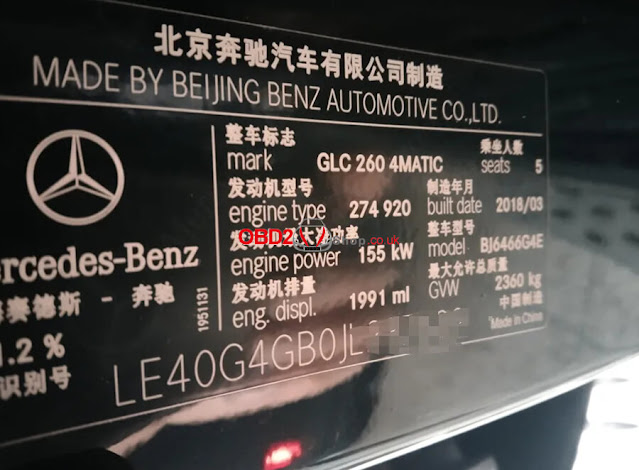
This is a tutorial on how to do mileage correction on Mercedes GLC 2017 using CGDI CG100X programmer . Note: This tutorial is created by CGDI Tech Support. 1. Check the car information (car type and car year). Got the car information from VIN-- GLC 2017. 2. Check the current mileage. Better take a picture to record, we can see the current mileage is 125682km. 3. Remove the dashboard and check the chip number. The kilometers are stored in chip: R7F701414 4. Connect CG100X software --> Dashboard --> choose series --> Make --> Model --> Year/chip 5. Connect the wires according to the diagram. 6. Read the data (check the km if the same as those displayed on the dashboard). 7. Write your target mileage of 73909 KM and wait for the software to change. 8. Put the dashboard back in the car and everything is ok. You may be interested in: How to activate CGDI CG100X Programmer For more technical services, please follow https://www.obd2shop.co.uk/service/